AI Photo Editing Without Prompts
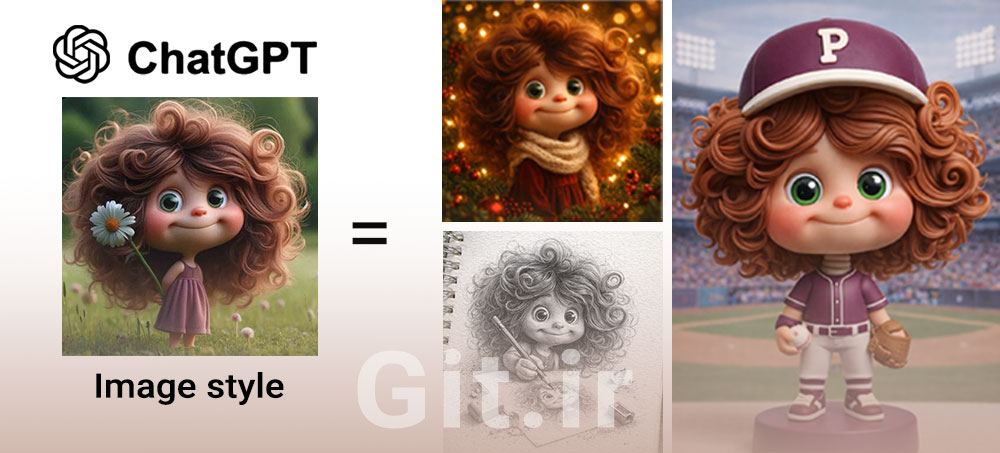
Despite the rapid expansion of AI tools, many users still perceive ChatGPT merely as a text-based language model. However, ChatGPT also offers advanced image processing and generation capabilities through its Image section, which are both technically robust and practically useful.
One of the newest features in this section is the ability to apply visual styles to an input image without writing a text prompt. Using this approach, users can simply upload an image and select a predefined style to receive a redesigned version of their image—without requiring specialized knowledge of prompt engineering or image generation techniques.
The goal of this article is to introduce this capability in detail, explain how it works, and provide a step-by-step guide for using it effectively within ChatGPT.
What exactly does this new feature do?
This feature is based on an approach known as Style-based Image Generation. In this process, the AI system automatically analyzes the uploaded image and then applies a selected visual style to it.
In summary, the processing pipeline includes the following steps:
Structural analysis of the image (detecting faces, objects, background, and composition)
Extraction of visual features such as lighting, color, and texture
Applying the selected style in a way that aligns with the image content
The final output is an image that preserves its original identity and structure, while being visually re-rendered in a new artistic or graphical style.
Why this feature matters from a technical and practical perspective
1. Eliminating dependency on prompt writing
In many image generation tools, output quality heavily depends on the precision and complexity of text prompts. With this feature, that dependency is completely removed. The key advantages include:
Reduced errors caused by vague or incorrect prompts
Greater accessibility for non-technical users
Faster image generation workflow
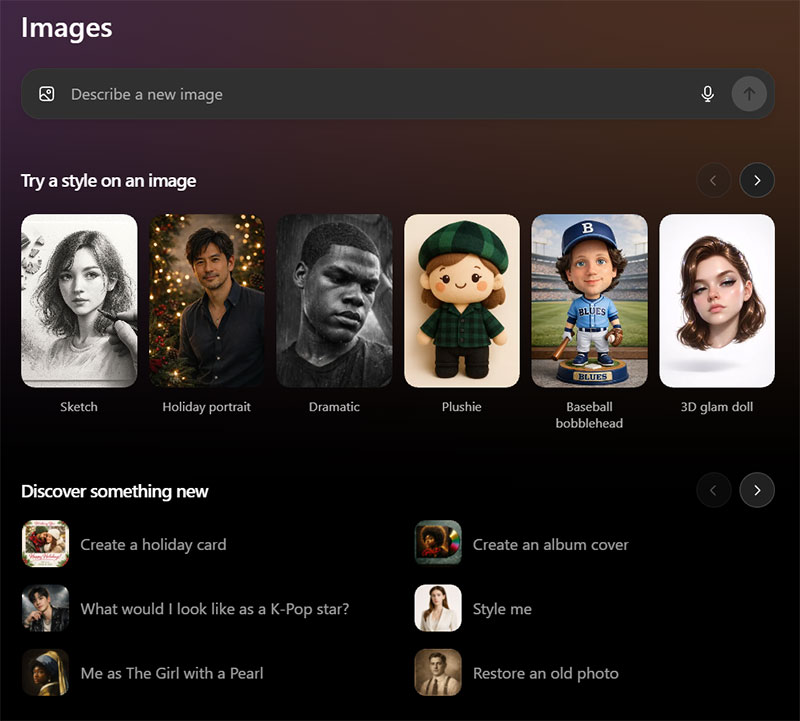
2. Using predefined style templates
The system provides a set of predefined and optimized style templates, including:
- Cartoon
- Anime
- Digital Painting
- Watercolor
- Sketch
- Cinematic
- 3D
- Minimal
- Fantasy
- Enhanced Realism
Each style includes specific configurations for color, lighting, level of detail, and texture, which are applied automatically. Given the modular design of this feature and the general evolution of generative image tools, it is reasonable to expect that more diverse and specialized styles will be added in the future.
3. Preserving image identity and practical usability
Because the output image is generated directly from the user’s original photo:
Facial identity is not significantly altered
The overall composition remains intact
The result is more reliable for both personal and commercial use
How to style your own photo with ChatGPT (step-by-step guide)
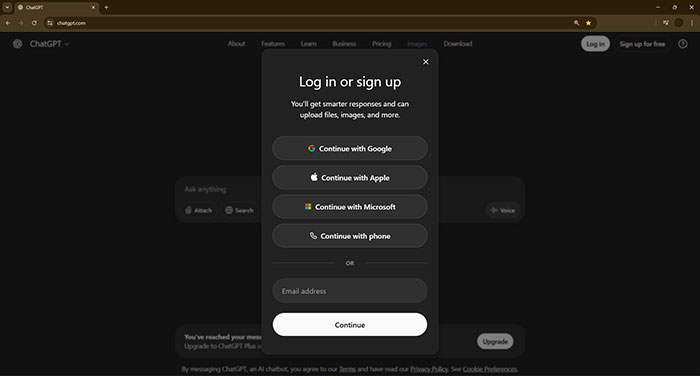
Step 1: Access the ChatGPT website
First, visit the official ChatGPT website and log in to your account. If you do not already have an account, the registration process is quick and straightforward.
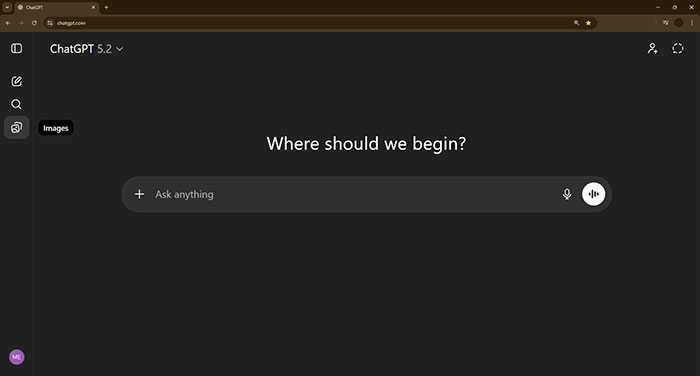
Step 2: Open the Image section
After entering the chat interface, select the Image option from the tools or content menu to access the image generation and editing environment.
Step 3: Upload your image
Upload the image you want to style. For best results, consider the following:
Use an image with sufficient resolution
Ensure the main subject is clearly visible
Use common image file formats
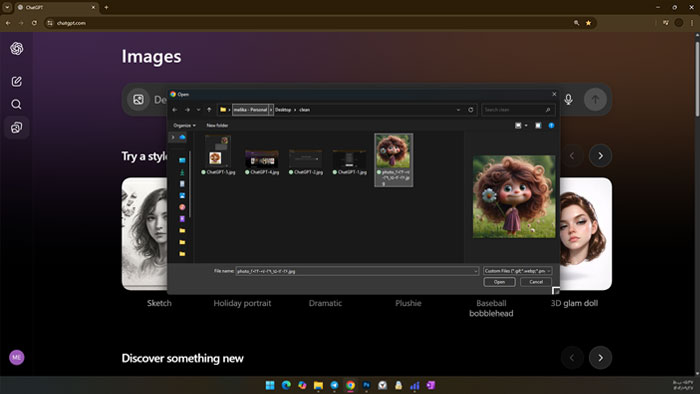
Step 4: Select a style
Once the image is uploaded, a list of available styles will appear. Simply choose one to begin the image generation process.
At this stage:
No text description or prompt is required
You can experiment with multiple styles on the same image
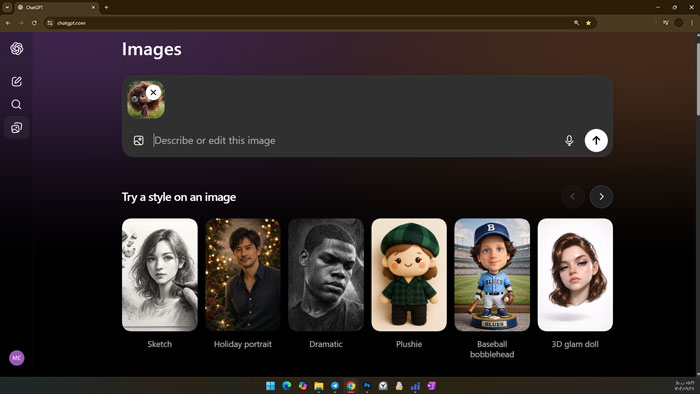
Step 5: Generate and download the output
Click the Generate button to process the image and produce the final output. Once completed:
You can download the generated image
Or try a different style on the same photo
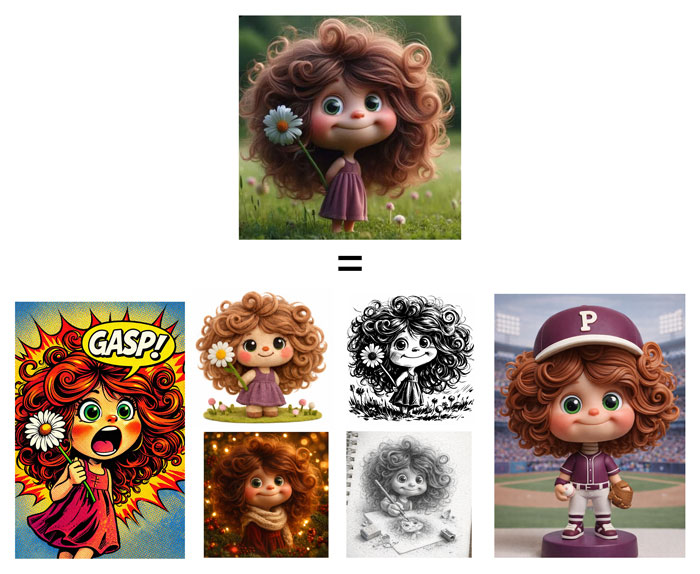
How to get higher-quality results
To achieve the best possible results when styling images with ChatGPT, the quality of the input image plays a critical role. Following a few simple guidelines can significantly improve the final output:
Use high-resolution images: Higher resolution and clarity provide the model with more visual details, resulting in more natural outputs.
Ensure proper lighting: Images with balanced and sufficient lighting generally produce more accurate colors and textures.
Frame the subject correctly: Make sure the main subject (e.g., face or product) is clearly positioned and not cluttered by unnecessary elements.
Choose a style appropriate to the image type: Some styles work better for portraits, others for landscapes or graphic images. Testing multiple styles can help identify the best match.
Avoid heavily edited images: Raw or lightly edited photos usually yield more natural and reliable results.
Following these recommendations helps ensure that the final output is both visually polished and aligned with the user’s intended purpose.
Practical use cases
This feature can be applied in a wide range of scenarios, including:
Rapid visual content creation for social media
Redesigning personal photos
Creating avatars and profile images
Visual concept previews for designers
Producing advertising images with minimal time and cost
Conclusion
The image styling capability in ChatGPT’s Image section represents an important step toward simplifying user interaction with generative image models. By removing the need for prompt writing and relying on automatic image analysis, this tool enables high-quality image generation for a broad range of users.
This approach clearly indicates that the future of AI tools will focus less on technical complexity and more on intelligent, user-centered experience design.
Learn more about ChatGPT
If you want to use ChatGPT more professionally and explore its advanced capabilities—such as image generation, data analysis, and real-world applications—you can visit the Learning ChatGPT and related training courses on our website.
These resources will help you use ChatGPT not just as an experimental tool, but as a practical solution for everyday work and learning.
Please Log in to leave a comment.