Building a Custom GPT for Beginners

Custom GPTs are one of the most practical ways to make AI feel yours, rather than a one-size-fits-all bot. Instead of juggling long prompts every time you start a task, you can create a focused assistant that understands your goals, follows your tone, and returns results in the exact format you want – without writing code. This beginner-friendly guide explains what a Custom GPT is, why you might build one, and how to create your own using ChatGPT’s GPT Builder. You’ll also find examples, common pitfalls, and learning paths on Git if you want structured, hands-on practice.
What Is a Custom GPT?
A Custom GPT is a personalized version of ChatGPT that you configure with your own instructions, knowledge, and behavior rules. In practice, you’re designing a specialist that reliably does one job well for you or your team. You can: define role and tone, set formatting expectations, upload files to ground answers, and, if available on your plan, enable capabilities like browsing or code execution. All of this is done through a guided setup flow in the GPT Builder, so no coding is required.
Common ways people use Custom GPTs include:
- Personal assistants: study buddy, journaling coach, habit tracker
- Content generators: blog outlines, social posts, product descriptions
- Business tools: knowledge-base Q&A, lead qualification, SOP drafting
- Learning companions: explainer bots, quiz or flashcard creators
- Task-specific agents: resume refiner, project timeline builder, “explain my code” tutor
If you’re new to AI, think of a Custom GPT like an intern you brief exceptionally well – one who never forgets your instructions, references only the materials you approve, and formats results exactly how you asked.
Why Create a Custom GPT?
Most of us repeat our preferences every time we open a new chat: “Use this tone,” “Format like this,” “Reference this spreadsheet,” “Don’t include fluff.” A Custom GPT bakes those rules into the assistant itself, so when you prompt chatGPT you get faster, more efficient, setup, more consistent outputs, and fewer do-overs.
What to Expect From a Custom GPT
- Time saved on repetitive tasks. Replace multi-step prompting with one-click workflows tuned to your use case.
- Higher quality, on-brand outputs. Lock in tone, goals, and format so you’re not rewriting the same draft three times.
- Low-friction prototyping. You don’t need to be a developer to “productize” a useful assistant for your team.
- Portfolio signal. A practical Custom GPT—plus a short write-up of how you built and iterated it—can help you stand out with employers.
Example Use-Cases for Custom GPTs
Creators, marketers, solopreneurs, support teams, educators, and productivity enthusiasts all gain leverage here. If your work involves repeatable formats, ongoing baseline context, routine analysis, or FAQs, a Custom GPT can compress hours into minutes. Consider the following examples of business and personal use cases.
Business Professionals
- Project manager GPT
- Goal: Convert rough task lists into a timeline with owners, dependencies, risks, and status notes.
- Inputs: Task list, target deadline, team members, and any known constraints or non-negotiables.
- Outputs: A table with task, owner, start/end, dependency, risk, and next action; plus a weekly status summary.
- System tips: “Flag missing owners or unclear dependencies. Suggest risk reductions. Keep updates below 150 words.”
- Success check: Can it generate a coherent timetable and a brief status update that a stakeholder can read in less than 60 seconds?
- Coding explainer GPT
- Goal: Translate code and algorithms into simple English with complexity, edge cases, and test concepts.
- Inputs: Code snippet or function, language, and any known limitations or anticipated behavior.
- Outputs: Step-by-step explanation, Big-O complexity, three edge cases, and a minimal test outline.
- System tips: “Assume the reader is technical but unfamiliar to this code. Opt for clarity over jargon. Offer a ‘teach-back’ quiz on request.”
- Success check: A junior developer can describe what the code does and write a basic test after reading the output.
Personal Use
- Journaling coach
- Goal: Use CBT-style prompts to guide reflective writing while staying non-clinical and supportive. CBT-style prompts are questions or exercises inspired by Cognitive Behavioral Therapy that help people notice patterns in their thoughts, feelings, and behaviors, then explore more balanced or constructive perspectives. These prompts should encourage self-awareness, challenge unhelpful thought patterns, and promote reflection – without positioning the writing as therapy.
- Inputs: A short mood note or circumstance description, optional triggers, and time available (e.g., 5 minutes).
- Outputs: three specific questions, a brief reframe, and a small daily action.
- System tips: “Include a clear disclaimer: not therapy or medical advice. If self-harm is suggested, escalate to crisis assistance.”
- Success check: Prompts feel specific and useful, and the response always includes the disclaimer and next step.
- Resume writer GPT
- Goal: Customize resumes and summaries to specific job descriptions with tone presets (formal, friendly, concise).
- Inputs: Your current resume (doc or text), the target job description, and any necessary accomplishments.
- Outputs: ATS-friendly bullet points, a role-aligned professional summary, and a “skills match” checklist. ATS-friendly means the content is formatted and worded in a way that Applicant Tracking Systems (recruiter software that scans résumés) can easily read and identify relevant keywords, ensuring your application passes the first screening stage.
- System tips: “Never invent experience. Quantify impact where possible. Offer two tone options per section.”
- Success check: Can it produce a ready-to-paste experience section that matches the JD within one pass.
- Study buddy GPT
- Goal: Transform notes into active-learning exercises and brief assessments.
- Inputs: Lecture notes or slides, target topic, and session duration.
- Outputs: 10 flashcards, a five-question quiz with answers, and a three-point summary.
- System tips: “Prioritize high-yield concepts. Combine recollection and application questions. Keep language plain.”
- Success check: You can complete a focused 15-minute session that improves recall on the next attempt.
Step-by-Step Guide: How to Build a Custom GPT
The key to a strong Custom GPT is focus. A narrow scope beats a “do everything” approach. Build something small, useful, and repeatable, then expand. Use our step-by-step guide to build your first version.
Step 1: Define Your Goal
Before launching the builder, answer the following three questions:
- Who is this for: you, your team, or your customers?
- Which task should it perform reliably?
- What inputs/outputs will it handle (files, links, notes → bullets, tables, drafts)?
Simplified GPTs are easier to improve and perform better, so keep the scope narrow. Verify a few essentials first to prevent obstacles during the build (skills, access, tools, and data). Start with this set of prerequisites:
Skills
- Able to critically assess products and write precise, clear instructions.
- Basic knowledge of the target domain (e.g., resumes, project planning, study methods) to assess quality.
- Comfortable handling files (PDF/CSV/Docs), copying text, and formatting results.
Account and access
- Confirm GPT Builder access
- GPT Builder is available on Plus, Pro, Team, Enterprise, and Edu.
- Go to chatgpt.com/gpts → click + Create. If you don’t see it, your plan or admin may restrict access.
- Verify tools are enabled
- Web browsing: In the GPT Editor → Configure → Capabilities → toggle Web Search on.
- File uploads & analysis: In a chat, check if the paperclip shows. In the GPT Editor, toggle Code Interpreter & Data Analysis.
- Code execution: Enabled through Code Interpreter & Data Analysis.
- Check workplace permissions
- Data use: Free/Plus users can opt out under Settings → Data Controls. Team/Enterprise data isn’t used for training by default.
- Sharing: In the GPT Editor, use the Share button to set access (Only me / Specific people / Workspace).
- External tools: If using APIs or connectors, confirm they’re approved for workplace use.
Hardware and software
- A laptop or desktop with a modern browser and reliable internet connection.
- Optional utilities: a PDF reader, spreadsheet app (for CSVs), and a plain-text editor for creating instructions.
Data and files
- Only use curated, reliable sources you have the right to access (e.g., brand/style guides, FAQs, SOPs, product docs).
- Keep files brief and relevant; divide large documents into smaller, topic-focused uploads.
- Prepare 2–3 sample inputs and gold-standard outputs in the exact format you want back and include them in your build.
Privacy, security and compliance
- Remove or conceal sensitive data (PII, credentials, proprietary details) unless you have explicit authorization.
- Add required disclaimers (e.g., “not medical/legal advice”) if your use case touches regulated topics.
- For public sharing, confirm brand/IP approvals and any legal review requirements.
Team and process (if building for others)
- A designated owner/approver, plus 1–3 test users to try realistic tasks.
- A simple feedback channel and a lightweight changelog to track instruction updates.
Time and scope
- Budget 30–60 minutes for a focused initial build and an additional 30 minutes for testing and iteration.
- Start small: one task, one target audience, and one output format. Expand only after it’s solid.
Step 2: Use the GPT Builder
Open ChatGPT → Explore GPTs → Create
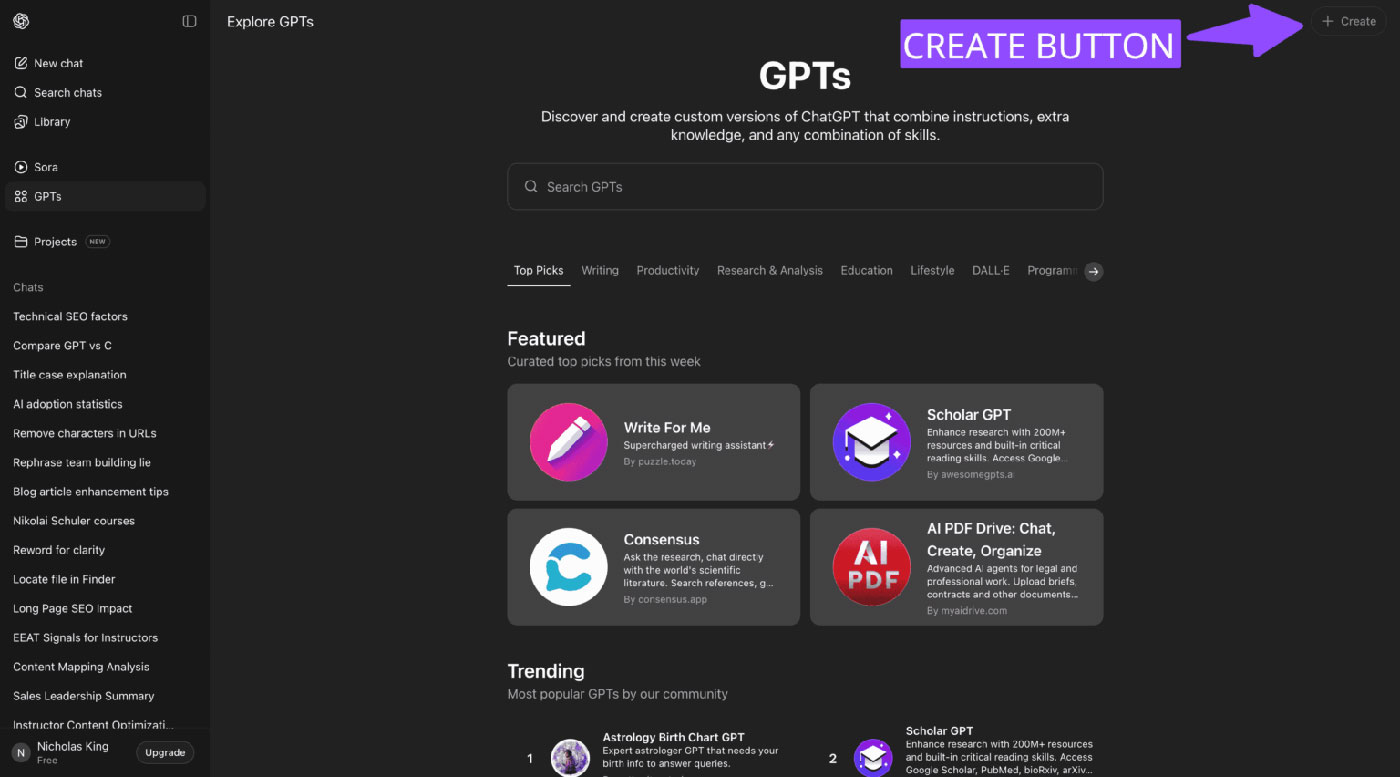
Describe your idea in plain language; the setup wizard will propose initial instructions and capabilities. Use specifics instead of general language: role (“clear, concise PM”), tone (“friendly, direct”), do/don’t rules, and precise output formats (“draft a three-part outline with H2s and bullets”). Add example interactions that show ideal Q&A—models learn structure from good examples.
Pro tip: If you often ask it to “be brief,” encode that as a rule (e.g., “use short paragraphs with scannable bullets”). If tables are useful, say when to use them and what columns to include.
Step 3: Upload Files or Add APIs (Optional)
Use trusted resources, like spreadsheets, documents, style guides, and PDFs, to build your GPT. Keep sources concise and curated; if a document is long, summarize or split it. If your plan supports tools, you can enable browsing or code execution to expand what the assistant can do. Advanced users will sometimes introduce APIs, if their plan and policies allow it. The goal here is to set clear boundaries on what your GPT can and can’t do.
Step 4: Test and Refine
Test from the perspective of a user, not a designer. Give it the messy prompts your audience will actually write, then make note of any failures: missed constraints, off-tone answers, hallucinated facts, formatting drift. Tighten the instructions, improve the examples, and add guardrails (e.g., “don’t give legal advice; suggest consulting a professional”). Invite one or two testers to try real tasks and log feedback. Iterate quickly, as small edits typically outweigh extensive rewrites.
Step 5: Publish or Share
When your GPT is useful for one job, ship it. You’ll have the option of setting the visibility to private (just you), shared (specific users), or public (discoverable). After that, you can include a clear name, a simple profile image, and a concise summary that conveys value. Well done! You now have a personalized AI assistant tailored to your objectives.
Tips for Success When Building Your First GPT
Smooth builds are typically distinguished from frustrating ones by these patterns:
- Be specific, not verbose. Short, precise rules are better than lengthy, vague guidance (e.g., “Always return 5 bullets and a 2-sentence summary” is better than “be concise.”)
- Use examples to “train” behavior. 2–5 great example conversations teach structure, tone, and depth more effectively than generic rules.
- Focus on one core function first. Specialists outperform generalists; you can always add capabilities later.
- Avoid open-ended mandates. Extremely broad goals (“be creative in all ways”) lead to erratic results. Scope the job.
- Add boundaries. List what your GPT should not do, such as offering medical/legal advice, and state when to escalate to a human.
- Document your build. Keep your system message and examples in a shared doc so updates are easy as your use case evolves.
Troubleshooting quick hits
- It ignores the format. Move format rules to the top of the system message and show a perfect example output.
- It hallucinates specifics. Reduce scope; add an explicit rule to cite only provided files or skip unknowns.
- Tone drifts. Add a short “voice” paragraph and anchor with one example written in the desired style.
- Too long/too short. Set hard caps (“≤150 words,” “table + bullets, no prose”) and reinforce with examples.
Learn to Build Custom GPTs with Git
If you learn best by doing, Git offers practical courses that walk you through building and deploying Custom GPTs—even if you have no coding background. These courses are project-based and show you how to go from idea to shareable assistant, step by step.
Recommended course
What you’ll learn
- How to structure prompts for personality, function, and output quality.
- How to choose and prepare documents or data to upload.
- How to incorporate advanced (optional) tools and APIs.
- How to test, troubleshoot, and refine GPT behavior to gradually lower errors.
Please Log in to leave a comment.